
To translate a YouTube video into another language, you can either generate translated subtitle files (SRT or VTT) to upload as closed captions, or create an AI-dubbed audio track so viewers can watch in their own language without reading. With Bevoice, you paste the YouTube link, let speech recognition transcribe the original audio, and export translated subtitles or a natural-sounding dubbed MP4 in minutes.
Choosing between subtitles and dubbing depends on your audience, your budget, and how people watch your content. Below is a practical workflow for both methods, along with tips on avoiding common translation mistakes.
Subtitles vs. AI Dubbing: Which Format Should You Choose?
Not every video needs full voice dubbing, and not every viewer wants to read captions on a small phone screen. Before you start translating, match the format to how your viewers actually consume your videos.
| Option | Best For | Viewer Experience | Production Effort |
|---|---|---|---|
| Translated Subtitles (SRT/VTT) | Tutorials, coding demos, silent mobile scrolling, SEO | Keeps original speaker voice; requires reading | Low — fast to generate and easy to edit line by line |
| Bilingual Subtitles | Language learning, interviews, international webinars | Shows original and translated text together | Low — helpful when viewers know basic English |
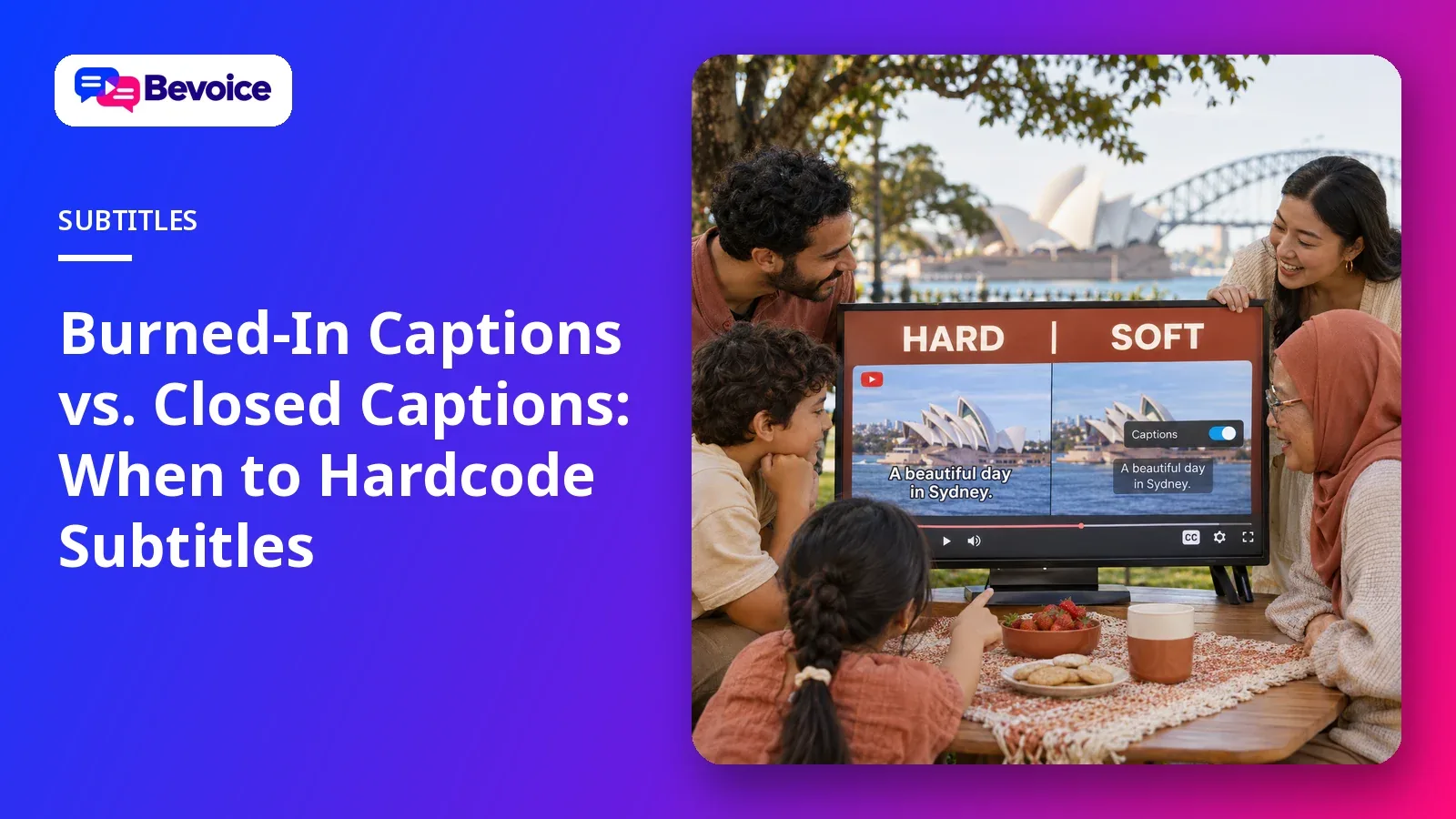
| Burned-In Subtitles (Hardsub) | YouTube Shorts, Reels, TikTok cross-posts | Always visible on any player; cannot be turned off | Medium — requires rendering a new MP4 file |
| AI Dubbing | Vlogs, documentaries, online courses, product reviews | Hands-free listening in the viewer's native language | Medium — best when paired with background audio mixing |
If you are testing a new market—say, Spanish or Japanese viewers—starting with translated SRT files is the lowest-friction way to measure demand. Once a video gains traction, adding an AI-dubbed audio track gives international viewers a much smoother experience.
How to Translate a YouTube Video Step by Step
You do not need to download a YouTube video manually or transcribe it by hand. A browser-based workflow handles speech recognition, timing, and translation in one pass.
1. Paste the YouTube Link (or Upload Your Source File)
Copy the URL of the YouTube video you want to translate and paste it into Bevoice. You can choose to use the video's existing YouTube captions if they are already clean, or have AI listen to the audio track from scratch. Letting AI re-listen is usually better when the original auto-captions are missing punctuation or misheard technical terms.
If you are translating an unreleased video before publishing it on YouTube, you can also upload the raw file directly—MP4, MOV, MKV, WEBM, or audio formats like MP3, WAV, M4A, FLAC, and OGG up to 2 GB—or upload an existing SRT or VTT file. If you already have an un-translated video file and want to see how automatic timing works, check out our guide on how to add subtitles to a video automatically.
2. Review the Original Transcript First
Before translating into another language, spend two minutes scanning the source transcript. Speech recognition supports 30+ languages and detects the spoken language automatically, splitting subtitles by natural speech rhythm (roughly 1 to 6 seconds per line).
Fixing a misspelled brand name or a garbled acronym in the source transcript prevents that mistake from carrying over into every target language. You can edit any line directly on the result page.
3. Pick Your Target Language and Context
Next, select one or more target languages from over 30 supported options. Context-aware translation lets you specify the subject area—such as technology, healthcare, legal, gaming, or film—so industry terms and proper names stay consistent from the first minute to the last.
If a single sentence still reads awkwardly in the target language, you can edit that line and re-translate just that line without re-running the entire video.
Exporting Translated Subtitles vs. Burning Them In
Once the translation looks right, you have two ways to deliver subtitles to YouTube viewers:
- Upload soft captions (SRT or VTT): Download the translated SRT or VTT file and upload it in YouTube Studio under the Subtitles tab. Viewers can toggle captions on or off, and YouTube indexes the translated text for search.
- Download Word, TXT, or ASS files: Export a clean transcript for blog show notes, an ASS file for advanced styling, bilingual subtitles, or a free AI-generated summary with key takeaways, or grab everything in a single ZIP archive.
- Burn subtitles into the video (MP4 720p or 1080p): If you are repurposing a YouTube clip for Shorts or social feeds where native caption support varies, customize the font size, color, background, outline, and position, then export a hardsubbed MP4.
For standard horizontal YouTube uploads, soft SRT or VTT tracks are almost always the better choice. They stay sharp at any resolution and let viewers switch languages inside the YouTube player.
Adding AI Dubbing for International Viewers
Subtitles work well, but many viewers prefer to listen rather than read—especially during tutorials, podcasts, and long-form storytelling. AI dubbing generates spoken audio timed to each translated subtitle line.
Bevoice supports AI dubbing in 10 languages: English, Vietnamese, Chinese, Japanese, Korean, French, German, Portuguese, Italian, and Indonesian. You can choose from natural-sounding male and female voices (such as Aria, Luna, Nova, or Leo) and preview the result right on the page before downloading.
Balancing the Dubbed Voice With Original Audio
Completely muting the original video can feel sterile if your video has background music, sound effects, or ambient room tone. When setting up your dub, you can either mute the original track entirely or keep 10%, 15%, 20%, or 25% of the original audio underneath the new voice.
- Keep 15%–20% original audio for vlogs, product demos, and videos with background music so the scene still feels alive.
- Mute the original audio (0%) for talking-head lectures or noisy outdoor recordings where background speech would clash with the dubbed voice.
- Download both MP4 and voice-only MP3 if you plan to fine-tune the audio mix later in your video editor or upload a separate multi-language audio track.
Note that if you only want AI dubbing, you do not have to purchase subtitle downloads separately—credits are billed per second based on duration (1 credit per minute for transcription, 1 credit per minute per language for translation, and 2 credits per minute per language for AI dubbing), and any failed step is refunded automatically.
Copyright, Accuracy, and Privacy Best Practices
Translating videos at scale is fast, but a quick quality and rights check protects your channel and keeps viewers trusting your content.
- Verify you hold the rights: Only translate, dub, and re-upload YouTube videos that you own or have explicit permission from the creator to localize. Re-uploading someone else's dubbed video without permission can trigger copyright strikes.
- Do a quick human spot-check: Automated speech recognition and translation can still stumble on heavy accents, overlapping speakers, niche slang, or noisy audio. Skim names, numbers, and calls to action before hitting publish.
- Check data retention: For peace of mind when handling client or unreleased footage, know how files are stored—on Bevoice, original uploaded videos are deleted after 7 days, extracted audio is deleted immediately after transcription, dubbed or burned-in videos are kept for 7 days, and text results remain available for 30 days.
Ready to Reach a Global YouTube Audience?
Translating your YouTube videos opens your channel to viewers who would otherwise click away in the first ten seconds. Whether you start with clean SRT captions or go straight to multi-language AI dubbing, keeping the workflow simple makes it realistic to localize every new upload.
You can test the full workflow with free trial credits when you sign up for a free account, or check credit options on the pricing page before your next upload.
Frequently asked questions
Can I translate a YouTube video without downloading it first?
Yes. You can paste the YouTube URL directly into Bevoice and choose to translate the video's existing captions or let AI transcribe the audio from scratch.
Should I upload translated SRT subtitles or an AI-dubbed video to YouTube?
Translated SRT or VTT subtitles are fastest for testing new languages and help with search indexing, while AI dubbing works better for vlogs, courses, and viewers who prefer listening over reading.
How many languages are supported for YouTube video translation and dubbing?
Speech recognition and subtitle translation support over 30 languages, while AI voice dubbing is available in 10 languages including English, Vietnamese, Chinese, Japanese, Korean, French, German, Portuguese, Italian, and Indonesian.
Is it legal to translate and dub someone else's YouTube video?
You should only translate, dub, and re-publish videos that you created yourself or have clear permission from the copyright holder to localize.